Keyword Research
The best Amazon search term report guide (a 4-bucket PPC framework)
The Amazon search term report reveals wasted spend and hidden winners. Use this 4-bucket framework to cut ACOS and boost organic rankings.

Amazon sellers pour billions into Sponsored Products each year, yet most never sit down and analyze where those clicks actually come from. The amazon search term report holds that answer, and it’s the single most underused data source in Seller Central. Without a structured way to read it, most sellers either ignore the file or skim for obvious winners, missing 80% of the signal.
This guide walks through every column that matters, introduces a 4-bucket decision framework with concrete numerical thresholds, and shows how to feed PPC data straight back into listing optimization. Everything here is designed for sellers who want a repeatable weekly workflow, not a one-off audit.
What is the Amazon search term report and why does it matter?
The Amazon search term report shows the exact queries shoppers typed before clicking a Sponsored Products ad. It reveals which literal phrases drive clicks, sales, and wasted spend, giving you the raw material to reshape both PPC and listing optimization.
The distinction between keywords and search terms trips up a lot of sellers. Keywords are the concepts you bid on inside your campaigns. Search terms are the literal strings shoppers type into the search bar.
Here’s a concrete example. You bid on the keyword “stainless steel water bottle.” A shopper searches “insulated water bottle 32 oz pink” and clicks your ad. The search term report captures that exact query, even though you never bid on it directly.
Understanding the value of the data
Most sellers glance at overall ACOS and call it a day. They don’t drill into individual search terms, which means they never see the queries that are quietly draining budget or the ones that are quietly outperforming. Sponsored Products makes up the majority of Amazon ad spend for most third-party sellers (as of 2025), so this report is where the money actually gets won or lost.
Skip this data and you’re guessing what shoppers want instead of reading their exact words. Amazon retains this data for approximately 60 days, and downloading at least every 30 days prevents permanent loss.
Different reports for different ad types
Sponsored Products, Sponsored Brands, and Sponsored Display each have their own version of the search term report. The columns differ slightly between them. This guide focuses on Sponsored Products because that’s where most sellers see the bulk of direct sales.
How do you download your Amazon search term report?
Pulling the data out of Seller Central isn’t hard, but the menus aren’t obvious. Log in, click Advertising in the main menu, then Sponsored Ads from the dropdown. Head to Measurement & Reporting, pick Reports, and hit Create Report.
Configuring the report parameters
Pick Search Term as the report type, then choose your time range. Daily format breaks metrics down by individual days, which helps for granular trends. Summary format rolls everything into one period, and that’s what most sellers should start with.
Keep the date range under 60 days so you don’t run into Amazon’s retention wall. Put a recurring reminder on your calendar for the 1st of each month. Some sellers with dev resources automate this through the Amazon Advertising API, but a Google Calendar ping does the job for most.
Campaign specific details
Sponsored Products gives the most detailed ASIN-level conversion data. Sponsored Brands adds headline search terms and shows how shoppers interact with your brand storefront. Sponsored Display leans into audience and product targeting. For most sellers, Sponsored Products is where 80% of the analysis time goes.
What does every column in the Amazon search term report mean?
Open the raw export and you’ll find thousands of rows spread across around 14 columns. Most of those columns are administrative noise. Three signals carry the real weight: click-through rate, conversion rate, and ACOS.
The complete column reference
| Column Name | What It Measures | Signal Priority |
|---|---|---|
| Campaign Name | The overarching campaign structure | Low |
| Ad Group Name | The specific ad group within the campaign | Low |
| Targeting | The keyword or product targeted | Low |
| Match Type | How broad or restrictive the targeting is | Low |
| Customer Search Term | The exact phrase the shopper typed | High |
| Impressions | How many times the ad appeared | Medium |
| Clicks | How many times shoppers clicked the ad | High |
| CTR | The percentage of impressions that got clicks | High |
| CPC | The average cost paid per click | Medium |
| Spend | Total money spent on this term | Medium |
| 7-day Sales | Total revenue generated within 7 days | High |
| 7-day Orders | Total number of units purchased within 7 days | High |
| 7-day Conversion Rate | The percentage of clicks resulting in orders | High |
| ACOS | Advertising Cost of Sales (Spend / Sales) | High |
Focusing on the critical signals
Three columns carry roughly 90% of the weight for optimization calls. CTR tells you whether shoppers care about the ad when it shows up. Conversion rate tells you if they follow through and buy. ACOS is your profitability check.
You’ll also notice rows labeled “other” in the report. Amazon lumps low-volume search terms together when they don’t get enough impressions to report individually. Those rows can eat up 20% to 40% of total spend on broad campaigns, and you can’t analyze what you can’t see.
The impact of match types
The match type column explains why a particular search term showed up for your keyword. Exact match means the query matched word for word. Phrase match means your keyword appeared inside a longer query, in the right order. Broad match means the words appeared somewhere in the query, in any order.
How do you analyze search terms with the 4-bucket framework?
Stop scrolling through rows wondering “keep or kill?” The 4-bucket framework gives you a number-based answer for every search term. Sellers who follow this system catch wasted spend weeks earlier than those relying on gut feel.
Bucket 1: The Winners
These are your moneymakers. Any search term pulling in 5+ orders AND an ACOS below your target (typically 15-30%) belongs here. Bump the bid 10-20%, move it into an exact-match campaign, and give it room to run. For scaling tactics, see the PPC optimization guide.
Bucket 2: The Potential
Something’s off with these terms, but they’re worth fixing. Look for 100+ impressions with a CTR below 0.3% OR 10+ clicks with 0 orders. Low CTR usually points to a weak main image or title. Low conversion points to price, bullets, or reviews not closing the deal.
Bucket 3: The Money Pits
Kill these fast. Any term with 20+ clicks and 0 orders OR an ACOS above 3x your target is burning cash. Add it as a negative exact match today, not next week. Build a proper negative keyword strategy so these don’t accumulate.
Bucket 4: The Low Data
Don’t touch these yet. With fewer than 15-20 clicks, there isn’t enough data to know whether a term converts. Negating too early is one of the most common mistakes sellers make. A term that looks dead after 8 clicks might become a winner by click 30.
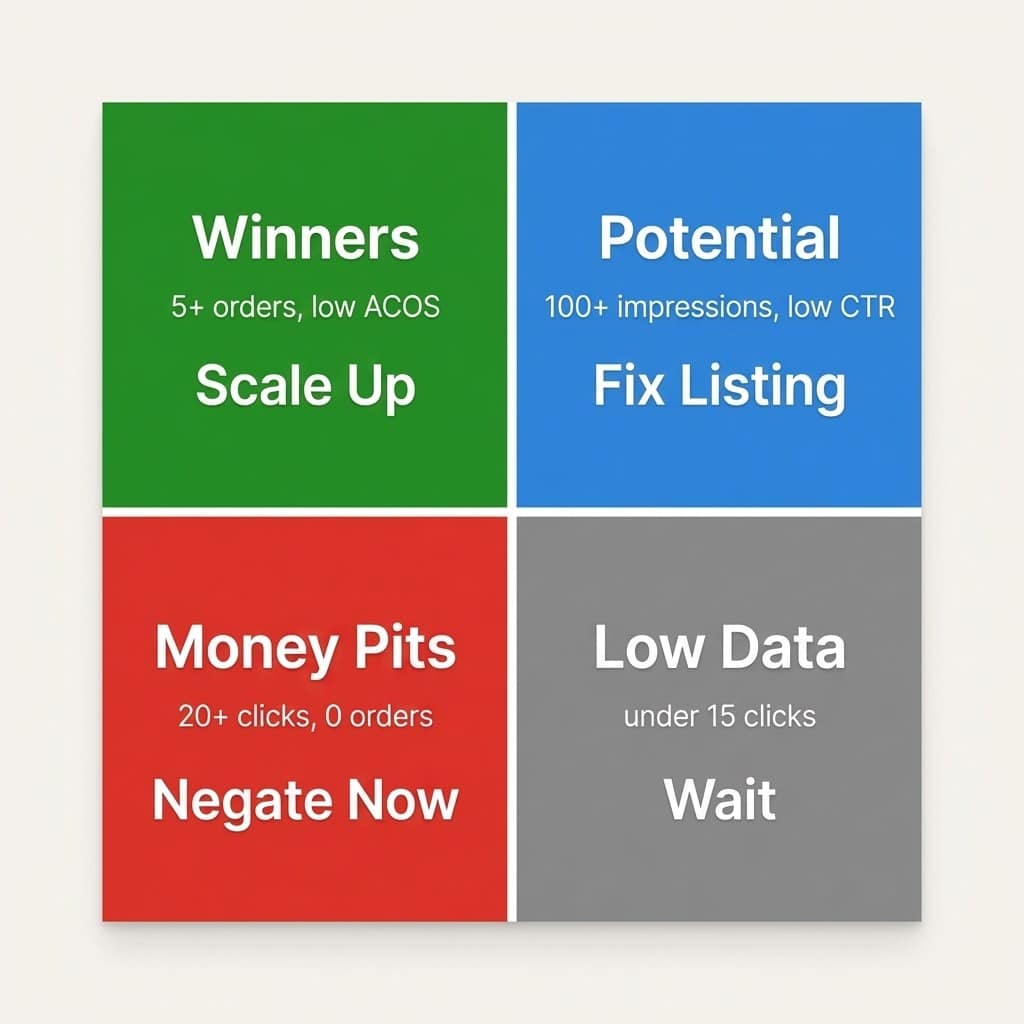
The complete 4-bucket decision matrix
| Bucket | Criteria | Action | Priority |
|---|---|---|---|
| Winners | 5+ orders, ACOS below target | Increase bids 10-20%, add to exact match | High |
| Potential | 100+ impressions (low CTR) OR 10+ clicks (0 orders) | Fix listing images, title, price, or bullets | Medium |
| Money Pits | 20+ clicks with 0 orders OR ACOS > 3x target | Add as negative exact match immediately | High |
| Low Data | Under 15-20 clicks | Wait for more data or increase budget | Low |
Take the winners from auto campaigns and move them into exact or phrase match inside manual campaigns. This auto-to-manual harvest is the foundation of a controlled PPC campaign structure that gets more profitable as data accumulates.
How do you turn PPC search term data into higher organic rankings?
If a search term converts through paid ads, real shoppers are typing it and buying from it. That makes it one of the strongest candidates for organic ranking. Sellers who start ranking organically for these terms gradually spend less on PPC for the same sales, and the compounding effect shrinks blended acquisition cost over time.
Applying the TFSD framework
The TFSD framework breaks placement into four clear steps. Here’s where each winning search term should go:
- Place the top 3 to 5 converting terms directly into the Title.
- Weave secondary converting terms into the bullet points.
- Catch the remaining long-tail winners in the Backend Search Terms.
- Reinforce key terms naturally throughout the product Description.
The keywords.am TFSD editor speeds this up by showing which terms from the report already live in each listing field and which are missing. Instead of manually cross-referencing a spreadsheet with Seller Central, you spot keyword gaps at a glance.
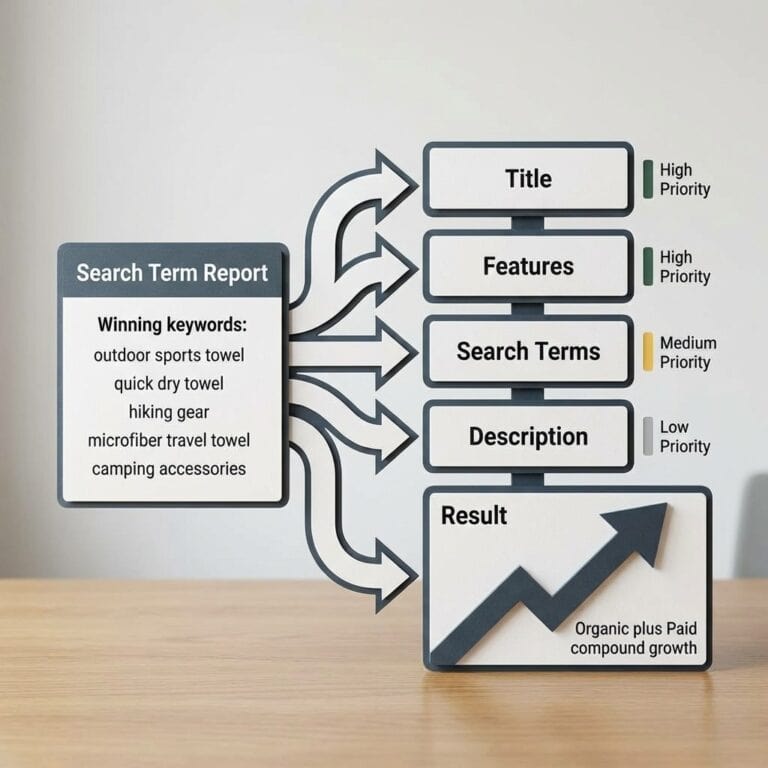
Optimizing the backend fields
The search term report often surfaces converting long-tail phrases that sound awkward in titles. Add these to backend fields where they can’t hurt readability. This maximizes coverage without cluttering your customer-facing copy.
Comparing STR and SQP data
These two reports get mixed up constantly, but they answer different questions. The search term report is about your ads: which queries triggered them, what you spent, and what converted. Brand Analytics SQP zooms out and shows organic plus paid market share across every seller competing for a given query.
| Feature | Search Term Report | Brand Analytics SQP |
|---|---|---|
| Data scope | Your ads only | Market-wide (all sellers) |
| Traffic type | Paid clicks | Organic + paid |
| Availability | All advertising sellers | Brand-registered sellers only |
| Best use | Negative keywords, bid tuning | Competitive positioning, share of voice |
| Retention | 60 days | Longer historical windows |
Use STR to optimize PPC and build negative keyword lists. Use SQP (available through Brand Registry) to understand where you stand against competitors.
Frequently Asked Questions About Amazon Search Term Reports
How far back does the Amazon search term report go?
Amazon retains search term data for approximately 60 days, and anything older is permanently deleted. Most sellers download reports every 30 days to keep a continuous history. Some automate the process through the Amazon Advertising API to avoid gaps.
How often should sellers check the search term report?
Weekly checks work well for active campaigns because they catch money-pit terms before they drain the budget. A full export every 30 days keeps your historical database intact for seasonal analysis. Skipping a month means losing data you can’t get back.
What counts as a good ACOS for Amazon PPC?
Most sellers target 15-30% ACOS, though the right number depends on your margins. Anything above 40% is usually unprofitable for standard products. Work backward from your sale price, subtracting product cost, FBA fees, and desired profit to find your true target.
What does “other” mean in the search term report?
Amazon groups low-volume search terms into an “other” category when individual queries have too few impressions to report separately. This bucket can represent 20% to 40% of total spend on broad campaigns. If it looks unusually large, restructure auto campaigns to surface more individual terms.
Can the search term report show organic search data?
No, the report only covers queries that triggered paid ads. For organic search data, brand-registered sellers can use Brand Analytics Search Query Performance. That report shows organic and paid market share across every seller competing for a query.
Conclusion
- Download every 30 days: Amazon deletes anything past 60 days, and there’s no recovery option.
- Sort with the 4-bucket framework: Winners, Potential, Money Pits, and Low Data give you a clear action for every row.
- Negate at 20+ clicks with zero orders: Waiting longer just burns budget you won’t get back.
- Feed winners into your listing: TFSD placement turns paid data into organic ranking gains.
- STR is for your ads, SQP is for the market: Don’t confuse the two when planning strategy.
Pull the last 60 days of search term data right now. Sort by spend, highest first. Every term with 20+ clicks and zero orders gets negated today, and every winner gets moved into an exact-match manual campaign this week.
For sellers who want to shortcut the listing side of the workflow, the keywords.am TFSD editor shows exactly which winning search terms already live in your listing and which are missing. If you’re ready to make this a monthly system rather than a one-time cleanup, start a keywords.am plan and turn a spreadsheet exercise into a 15-minute workflow.