Keywords (Lists & Research)
Swiss Army Knife - Keyword Processor Help Guide
Swiss Army Knife - Keyword Processor Help Guide

The Swiss Army Knife in Keywords.am is a utility tool designed to help Amazon sellers, marketers, and content creators clean, filter, and manipulate raw keyword data quickly. Whether you’re optimizing an Amazon listing, preparing backend search terms, or conducting keyword research, this tool simplifies the messy process of working with large keyword sets.
How It Works
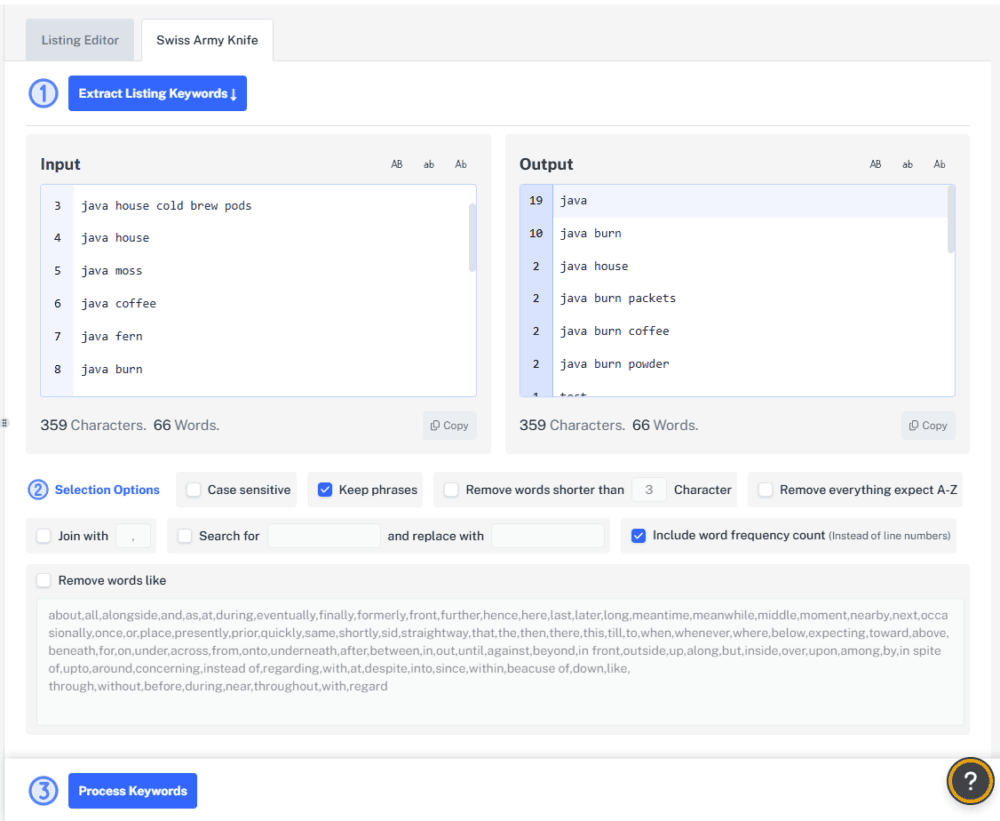
The Swiss Army Knife is designed to be used in sequence as labeled in the interface. Step 1: Input your raw keywords Paste them into the input box, or click Extract Listing Keywords to pull in the keywords showing in your project’s keyword table. Step 2: Choose your filters Clean, combine, format, and remove noise with easy toggle options. Step 3: Process Keywords Generate a polished output you can copy, export, or reuse.
What It Does
The Swiss Army Knife helps you:
- Clean messy keyword lists
- Remove filler/stop words
- Combine keywords into usable formats (e.g., comma-separated)
- Count word frequency
- Customize and transform keyword text
It’s ideal for turning raw research or competitor data into structured, optimized lists for Amazon listings.
When to Use It
Use the Swiss Army Knife:
- After extracting keywords from Amazon listings or competitor ASINs
- When you paste in raw keyword lists exported from other tools, Brand Analytics, or any spreadsheet
- Extracting certain keywords from your keyword list and getting them ready for an ad campaign
- To prepare A/B test variations for title, bullet points, or description
- To count keyword frequency for ranking analysis
Key Features & How to Use Them
1. Input Keywords
Paste your keywords into the Input box on the left, or click Extract Listing Keywords to pull in the keywords showing in your project’s keyword table (with the Eye on, that’s only the ones not yet used in your listing). Each line should be a single phrase or word. Duplicates are fine - the tool removes them.
2. Selection Options
Option What it does Case sensitive Keeps uppercase/lowercase distinctions (off: everything is lowercased) Keep phrases Preserves multi-word phrases instead of breaking them into single words Remove words shorter than X characters Filters out short words (like “an”, “to”, “on”) Remove everything except A-Z Drops any word or phrase that has a number, punctuation or accented letter in it Combine Singular/Plural words Merges singular and plural forms into one, keeping the singular or the plural as you choose
3. Word Filtering & Replacements
Option What it does Join with Combines keywords into a single string separated by the character you type (a comma by default, or a space for backend search terms) Search for / Replace with Replace specific terms in bulk Remove words like Eliminates common “filler” words like the, in, with, from, etc.
4. Frequency Mode
Enable “Include word frequency count” to view how often each word appears in your keyword set. This is great for spotting the words that come up most often. The output is sorted by count.
5. Output Area
Once processed, your cleaned keywords will appear in the Output box on the right. Use the Copy button to quickly paste them into your listing or spreadsheet.
Pro Tips
- Backend Search Terms: Use the “Join with” option with a space (Amazon wants backend terms space-separated, not comma-separated) and turn on “Remove words like” to get a clean backend term string.
- Content Optimization: Use frequency counts to see which terms deserve to be in your Title vs. Bullets vs. Description.
- Listing Analysis: Click “Extract Listing Keywords,” then run the results through this tool to break them into single words and simplify them.
- Export & Reuse: Copy the processed output and save it for tracking keyword updates or running future audits.
Example Use Case
Let’s say you extract a bunch of keywords from your competitors: best cold brew coffee java house cold brew pods cold brew packs java burn packets coffee for energy You can:
- Paste them into the input box.
- Enable “Remove words like” and “Remove words shorter than 3”.
- Choose “Join with” and type a space.
- Get a clean backend search term string in one click.